Self-Host Dockge: The Docker Compose UI That Won't Steal Your Morning
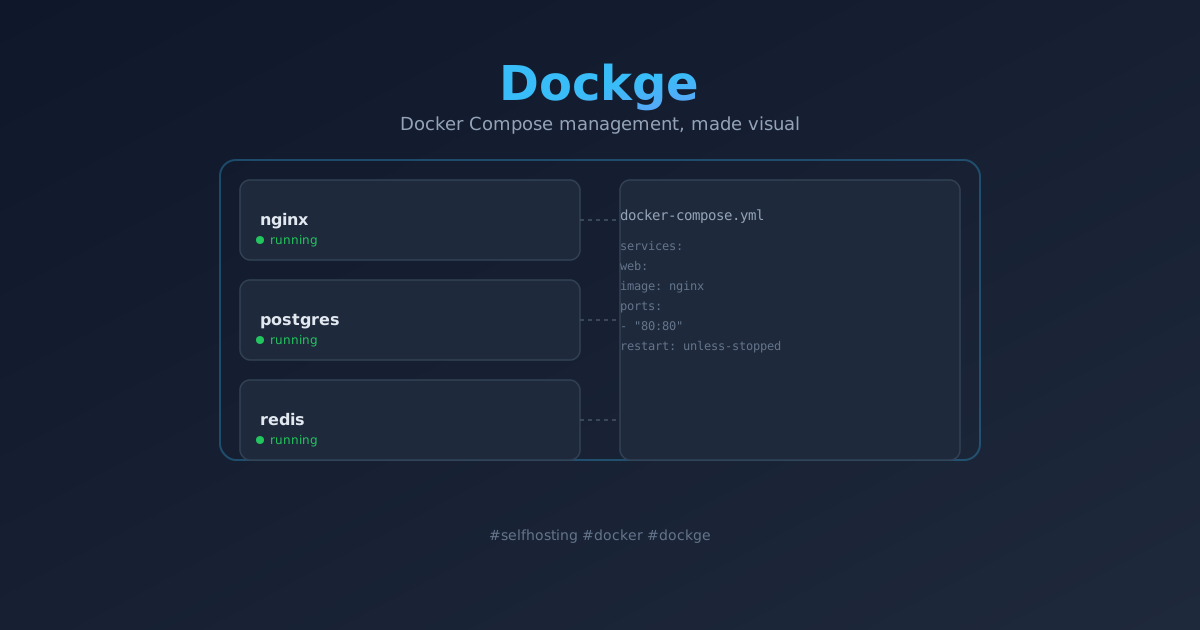
Dockge is a Docker Compose management UI from the creator of Uptime Kuma. Set it up in 2 minutes, manage stacks visually, and stop SSHing into your server to edit YAML files.
I love the terminal. I also hate editing docker-compose.yml files over SSH at 11pm on a Wednesday.
Every time I wanted to bump a container’s version, add an environment variable, or check why a service was crash-looping, I had to: SSH into the server, cd into the right folder, nano the YAML file, save, run docker compose up -d, and pray I didn’t introduce a YAML indentation error.
It works. It’s also tedious.
Then I found Dockge — a Docker Compose management UI from the same guy who built Uptime Kuma (Louis Lam). If you’ve used Uptime Kuma, you already know the design language: clean, functional, zero fluff.
I’ve been running it for three months now, and it’s one of those tools I didn’t know I needed until I stopped SSHing ten times a day.
The short version
Dockge is not a replacement for Docker Compose. It’s a visual layer on top of it.
You give it a folder of docker-compose.yml files (or point it at your existing stacks), and it gives you:
- A web UI showing all your stacks with their status
- Logs for each stack (colorized, searchable, real-time)
- A built-in editor to modify Compose files
- One-click deploy, stop, restart, update
- A terminal for each container
Under the hood, it’s just running docker compose commands. Your Compose files remain untouched — you can edit them via Dockge or directly in the terminal. They’re the same files.
That last point is important. Dockge doesn’t replace your workflow. It augments it.
Why not Portainer?
I’ve covered Portainer before. It’s excellent. But Portainer is a general-purpose Docker management tool — it handles containers, images, volumes, networks, and Kubernetes. It’s a Swiss Army knife.
Dockge is a scalpel. It focuses on one thing: managing Docker Compose stacks. If you’re like me and 90% of your Docker usage is Compose files, Dockge feels more natural.
The other difference: Dockge stores everything in your existing Compose files. Portainer has its own database. If Portainer breaks, you need to restore from backup. If Dockge breaks, your stacks are still there — they’re just YAML files on disk.
The setup
Dockge runs in Docker, naturally. Create a folder and a docker-compose.yml:
mkdir -p ~/dockge && cd ~/dockgeservices:
dockge:
image: louislam/dockge:latest
container_name: dockge
restart: unless-stopped
ports:
- "5001:5001"
volumes:
- /var/run/docker.sock:/var/run/docker.sock:ro
- ./data:/app/data
- /opt/stacks:/opt/stacks # Where your Compose files live
environment:
- DOCKGE_STACKS_DIR=/opt/stacksdocker compose up -dWait about 10 seconds and open http://your-server:5001.
Important: The DOCKGE_STACKS_DIR environment variable tells Dockge where to look for your Compose stacks. I keep mine at /opt/stacks, with each stack in its own subfolder:
/opt/stacks/
  ├── nextcloud/
  │   └── docker-compose.yml
  ├── vaultwarden/
  │   └── docker-compose.yml
  └── n8n/
      └── docker-compose.yml
Dockge scans that directory and shows everything in one dashboard.
First impressions
The dashboard is simple. You see a list of your stacks, each with a green/yellow/red status dot, uptime, and the date it was last deployed. Click any stack and you get:
- Logs — real-time, colorized, with a search box. This alone is worth the install. No more
docker compose logs -f --tail=100and squinting at plain text. - Editor — a text editor inside the browser where you can modify your Compose file. It has syntax highlighting and validation. Save and deploy with one click.
- Terminal — a web shell into each container. Handy for quick fixes.
- Environment — a form to set environment variables without editing YAML.
The “Deploy” button is my most-used feature. I edit the Compose file, click “Deploy”, and Dockge runs docker compose up -d with the new config. If there’s a syntax error, it tells me immediately instead of silently failing.
What I actually use it for
Daily: Checking logs. I open Dockge in a browser tab and glance at logs when something feels off. The search filter saved me multiple times — I can search for “error” or “warning” across all my stacks at once.
Weekly: Updating containers. I bump image versions in the editor, hit deploy, and move on. No SSH, no terminal, no context switching.
Occasionally: Debugging. When a container won’t start, Dockge shows the startup logs in real time. I can see the exact error, edit the Compose file, and redeploy — all in the same window.
Never: Replacing version control. I still keep my Compose files in Git. Dockge is for daily operations, not long-term infrastructure management.
What I learned the hard way
1. Dockge needs write access to your stack directory
I set up my stacks directory with chmod 755 and Dockge couldn’t save edits. Took me 15 minutes to figure out. Make sure the user running Dockge (UID 1000 by default) can write to the stacks directory, or change the permissions:
chmod 777 /opt/stacksYes, 777 is not ideal. I use a more restrictive setup with Dockge running as a specific user that matches the file owner.
2. Don’t put Dockge in the same stack directory it manages
I made this mistake. Dockge scanned its own Compose file and showed itself in the dashboard. That’s a philosophical rabbit hole I didn’t want to explore. Separate them.
3. The “Update” button is not magic
Dockge has an “Update Stack” button that pulls new images and redeploys. It’s convenient, but it doesn’t handle database migrations or breaking changes. I still read the changelog before updating production services.
4. Dockge stores logs in memory
Logs are not persisted. If you restart Dockge, you lose the log history. That’s fine for debugging, but don’t rely on it for auditing. Use a proper log collector (like Dozzle or Loki) for that.
The verdict
Dockge won’t change your life. But it will make your daily Docker Compose operations significantly less annoying.
If you’re managing 3-20 Compose stacks and you’re tired of SSHing into your server every time you need to change a port mapping or check a log, install Dockge. It takes 30 seconds to set up, it’s free, and it doesn’t get in your way.
The best part? If you decide you don’t like it, delete the container. Your Compose files are still there, untouched. No lock-in, no migration, no drama.
🚀NordVPN
Secure your self-hosted server with a reliable VPN. Encrypt all traffic, hide your IP, and access your homelab remotely.
Affiliate link — we may earn a commission at no extra cost to you.
Related
- Self-Host Dozzle: The Docker Log Viewer I Use Before Loki — Lightweight log viewing, pairs well with Dockge
- Portainer: The Visual Docker Management UI — The Swiss Army knife alternative
- Self-Host Uptime Kuma — Same creator, same design philosophy
- Docker Compose for Beginners — If you’re new to Compose
Tested on Dockge 1.4.1, running on a Hetzner CPX21 with 20+ stacks. Written from a browser tab that hasn’t touched SSH in three days.
Stay in the loop 📬
Get self-hosting tutorials, tool reviews, and infrastructure tips delivered to your inbox. No spam, unsubscribe anytime.
Join 0 self-hosters. Free forever.